Written by Vivek G Gite.
This is the first PART-I of Linux File Server Tutorial (LFST b0.1) which is distributed with LSST v.1.05, March 2001. Next PART-II (LFST b0.2) will have more technical details about Linux file system and more utilities are cover in depth. You can find PART-II (LFST b0.2) of LFST at http://www.freeOS.com; also for more information you can also visit my home-page http://gite-vivek.50megs.com. I hope so reader find it as useful as LSST ver 1.05.
I N D E X
File are collection of data items stored on disk. Or it's device which can store the information/data/music/picture/movie/sound/book; In fact what ever you store in computer it must be inform of file. Files are always associated with devices like hard disk ,floppy disk etc. File is the last object in your file system tree.
In Linux files have different types like
And the process which manage the Files i.e. creation, deletion, copying of files and giving read, write access of files to user is called File management.
Normally you can perform following operation on files
Directory is group of files. Directory is divided into two types as
(1) Root directory : Strictly speaking, there is only one root directory in your system, which is shown by / (forward slash), which is root of your entire file system. And can not be renamed or deleted.
(2) Sub directory : Directory under root (/) directory is subdirectory which can be created, rename by the user. For e.g. bin is subdirectory which is under / (root) directory.
Directories are used to organize your data files, programs more efficiently.
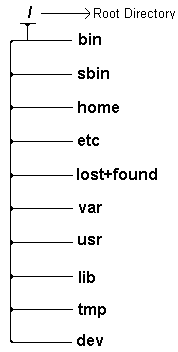
When you install Linux (Red Hat ver. 6.x), by default following directories are created by Linux
| Directory Name | Use to store this kind of files |
| /bin | All your essential program (executable files) which can be use by most of the user are store here. For e.g. vi, ls program are store here. |
| /sbin | Here all super user executable files are store which is mostly used by root user . |
| /home | Your sweet home. Mostly you work here. All the user have their own subdirectory under this directory. |
| /etc | Configuration file (Administrative files) of all important program are here. For e.g. smb.conf - Samba configuration file. |
| /lost+found | When your system crashes, this is the place where you will get your files. For e.g. You have shutdown your computer without unmounting the file system. Next time when your computer starts all your 'fsck' program try to recover you file system, at that time some files may stored here and may be removed from original location so that you can still find those file here. |
| /var | All your system log are here. Mostly the file(s) stored in this directory changes their size. |
| /usr | Central location for all your application program, x-windows, man pages, documents etc are here. (Programs meant to be used by all of the users on the system) |
| /lib | Here all shared library files are stored. |
| /tmp | Temporary file location |
| /dev | Special Device files are store here. For e.g. Keyboard, mouse, console, hard-disk etc device driver files are here. |
| /mnt | Floppy disk, CD-Rom disk, Other MS-DOS/Windows partition mounted in this location. (Mount points) |
| /boot | Linux Kernel directory |
How to identify directory and file in Linux?
Use any of the following two ways:
(1) When you give command like ls -l you will see something like
drwxr-x--x 1 root root 62 Mar 11 21:27 one.c
Here the first string (word) i.e. drwxr-x--x will help you to identify whether its directory, file or any other special file.
drwxr-x--x
0123456789
0 - Can be any one of the following
b block device hard disk, floppy disk
c character device sound, midi, com port
d directory (If its d it means its directory - 1st method)
p name pipe (FIFO)
f regular file
l symbolic link s socket
123 shows owner rights
456 shows group rights
789 shows others rights
Where
r : read permission
w : write permission
x : execute permission
- : No permission set for this bit.
If 0 - or f or l it means its file.
(2) You can type ls -d command to get list of directories only (2nd method).
How to get more information about file in Linux?
(1) Using stat command: Print file information.
Syntax: stat {file-name}
Example
$ stat one.c
$ stat /dev/hda2
On my PC it gave output as follows
File: "/dev/hda1"
  Size: 0            Filetype: Block Device
  Mode: (0660/brw-rw----)         Uid: (    0/    root)  Gid: (    6/    disk)
Device:  3,2   Inode: 176841    Links: 1         Device type:  3,1
Access: Wed May  6 02:02:26 1998(01040.19:40:07)
Modify: Wed May  6 02:02:26 1998(01040.19:40:07)
Change: Mon Mar  5 07:50:55 2001(00006.13:51:38)
(2) Using file command: Print magic information or file type on screen.
Syntax: file {file-name}
Example
$ file foo
foo: English text
$ file -s /dev/hda{1,2,3,4,5,6,7,8}
/dev/hda1: x86 boot sector, system MSWIN4.1, FAT (16 bit)
/dev/hda2: Linux/i386 ext2 filesystem
/dev/hda3: x86 boot sector, extended partition table
/dev/hda4: x86 boot sector, extended partition table
/dev/hda5: x86 boot sector, FAT (32 bit)
/dev/hda6: x86 boot sector, FAT (32 bit)
/dev/hda7: x86 boot sector, FAT (32 bit)
/dev/hda8: empty
Note that for first example file type for foo is "English Text" and for device file its as above.
A path is route you use to go from one directory to another directory or its way to tell Linux which file you want from tree type of file system.
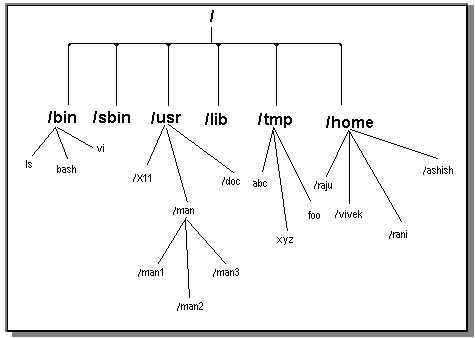
NOTE for above tree: bin, sbin, usr, lib, tmp, home, x11, man, man1, man2, man3, doc, raju, vivek, rani, ashish are all directories and all other are files.
Now consider above file system tree, Here what is the path of abc file ? First locate abc file, Its under tmp directory and tmp under root (/) directory so path for abc file is as follows
/tmp/abc
Try to write down path for following
1) ls command
2) X11 directory
3) man1
4) xyz file
5) root directory
Now suppose you want to copy abc file to you home directory (lets say /home/vivek) then command will be
cp /tmp/abc /home/vivek
Path is separated by / (forward slash).
Now write command for following ( I assume that you are in /home/rani directory)
1) Copy the file foo to /home/vivek directory
2) Copy the all files of /bin directory to /tmp directory
3) Delete all files from /tmp directory
4) Copy /bin/ls to your home directory
5) Copy all files from man3 directory to /tmp directory
6) Copy all files whose first name beginning with a from man3 directory to /tmp/fun
directory
What is mount and umount command and why they are required?
In MS-DOS, you see A: or B: or C: or D:, what is that? It's called drive, which is nothing but group of all directories and the drive name is given according to disk type by MS-DOS Os. For e.g. First floppy drive on IBM PC is A: (Read as A drive), Second is B: etc. When you want to use floppy you insert floppy disk into floppy drive and simply change drive later to A: as follows
C:\> A:
A:\> DIR
This is the feature of MS-DOS/Windows 9x Os. But how you will use floppy under linux? Linux don't understand drive letter as used in MS-DOS.
Let's try to understand Linux's tree file system

From above Fig. you can see there is only one stem/root (/ directory) for tree, this stem/root of tree divided into several branches (Subdirectories) and branches have different flowers, fruits, leaves etc (Files).
Under Linux all files, directory, cd-rom, floppy drive are all based on tree structure with root at the top. In fact many of the directories in the tree are physical devices like cd rom , floppy disk, OR partition of hard-disk.(may be partition of different remote computer). When such disk (floppy,cdrom etc) OR partition is attached to the file tree at a directory know as mount point and all files below that are referred as file system.
/dev directory under Linux contains special files which are require to access hardware devices such as floppy disk, CD-ROM disk, Another partition, tape drive etc.
For e.g.
IDE Devices (CD-ROM/RW or Hard Disk etc)
/dev/hdx -- Where x is the first IDE physical hard disk connected to your system. X can be a,b,c,d etc. hd means hard disk.
Where
/dev/hda means first IDE physical hard disk.
/dev/hdb means second IDE physical hard disk or cdrom drive.
Here /dev/hda1 refers to first partition of your disk i.e. C: in DOS.
SCSI Devices (CD-Rom/RW or Hard disk etc)
/dev/sdx -- Where x is the first SCSI physical hard disk connected to your system. X can be a,b,c,d etc. sd means SCSI disk.
Where
/dev/sda means first SCSI physical hard disk.
/dev/sdb means second SCSI physical hard disk or cdrom drive.
Here /dev/sd1 refers to first partition of your disk i.e. C:.
Floppy Disk
/dev/fdx -- Where x can be 0 or 1. Your first floppy disk drive (A:) is know as /dev/fd0, second floppy disk drive is know as /dev/fd1.
| In MS-DOS | Device | In Linux |
| C: | Hard disk | /dev/hda1 (IDE) |
| A: | Floppy disk | /dev/fd0 |
| D: | CD-Rom | /dev/hdb (IDE) |
| C: | Hard disk | /dev/sda1 (SCSI) |
But how to use them?
Make sure mount point exists, by default in Red Hat Linux v 6.x, it create following mount points
| Directory name | Device |
| /mnt/cdrom | CD-Rom |
| /mnt/floppy | Floppy Disk |
You can create your own mount point if above not exist simply by typing following command
$ su -l
passowrd
# mkdir /mnt/cdrom
# mkdir /mnt/floppy
| Comamnd | Use |
| $ su -l | Become root user, otherwise mounting is not possible |
| # mkdir /mnt/cdrom # mkdir /mnt/floppy |
Create mount point directory |
Also you can create mount point for your MS-DOS/Windows partition as follows (Here I assume you have install DOS/Windows in C: i.e. /dev/hda1 (i.e. for IDE or for SCSI use /dev/sda1))
$ su -l
# mkdir /mnt/c
Now to mount device (CDROM,FLOPPY DISK etc) use following mount command
Syntax: mount option {device} {mount-point}
Option:
-t type To specify file system being mounted.
For MS-DOS use msdos
For Windows use vfat (Long file name support under windows 95/NT etc)
iso9660 type is default and used by cd-roms.
-v
Its called Verbose mode which gives more information when you mount
the file system.
How to Use Floppy disk (How to mount floppy disk)?
$ su -l
# mount /mnt/floppy
# cd /mnt/floppy
# ls
How to Use CD-ROM disk (How to mount CD-ROM disk)?
$ su -l
# mount /mnt/cdrom
# cd /mnt/cdrom
# ls
How to Use C: under Linux (How to mount DOS partition under linux disk)?
$ su -l
# mount -t msdos /dev/hda1 /mnt/c
# cd /mnt/c
# ls
Process of attaching device to directory is called mounting and process which removes attached device from directory is called unmounting.
Syntax: umount { device }
Syntax: umount -t type { device }
$ su -l
back to home dir, you can't unmount while you are
in /mnt/floppy
# cd
# umount /mnt/floppy
$ su -l
# cd
# umount /mnt/cdrom
How to unmount DOS partition (C:)?
$ su -l
# cd
# umount -t msdos /dev/hda1
How to Copy file?
First Mount the floppy
$ su -l
# mount /mnt/floppy
# cd /mnt/floppy
# ls
Copy foo file from floppy disk to /home/vivek directory
# cp foo /home/vivek
Back to our home directory
# cd
Unmount the floppy disk
# umount /mnt/floppy
# logout
Mount the CDROM as
$ su -l
# mount /mnt/cdrom
# cd /mnt/cdrom
# ls
Copy bar file to /home/vivek from CD-Rom
# cp bar /home/vivek
# cd
# umount /mnt/cdrom
# logout
(c) From MS-DOS/Windows
Partition
Mount the partition as (Assumes MS-DOS/Windows 9x partition the
first partition i.e. C:)
$ su -l
#
mount -t msdos /dev/hda1 /mnt/c
# cd /mnt/c
# ls
Copy new.gif file from c: under Linux
# cp new.gif /home/vivek
# cd
#
umount -t msdos /dev/hda1
# logout
(d) From One directory to another
Copy all C program files from /usr/pub directory to /home/vivek/AllCprog
directory
$ cp /usr/pub/*.c /home/vivek/AllCprog
(e) How do I copy all files and subdirectory and files ?
Copy all directories, subdirectories and files from /usr/pub directory to
/home/vivek
$ cp -R /usr/pub
/home/vivek
(f) How do I preserve the all files ownership permission, time stamp while
coping?
$ cp -P /usr/pub/* /home/vivek
Note:Try -a option if you want to preserve file attributes only.
Delete file
(a) Normal file delete
Syntax: rm {filename}
Example:$ rm foo
(b) How do I delete all
files and subdirs from directory
Syntax: rm -rf {dirname}
Example:$ rm -rf uwfiles
Rename file
(a) Normal rename file
Syntax: mv {old-file-name} {new-file-name}
Example:$ mv foo
bar
(b) How do I rename all my .htm files to .html files?
Opps! mv will not work,
it works with two files only. Try rename as
Syntax: rename from to files-to-rename
Example:$ rename .htm .html *.htm
(c) How do I rename my all files like
abczz01.htm
abczz02.htm
abczz03.htm
abczz04.htm
to
abcyy01.htm
abcyy02.htm
abcyy03.htm
abcyy04.htm
Example:$ rename abczz abcyy *.htm
Move file
(a) Normal move
Syntax: mv {source} {destination}
Example: $ mv /home/vivek /mnt/floppy
Changing file date & time stamp
Syntax: touch {filename}
Example:
See the time
$ls -l foo
-rw-r--r-- 1
root root 284 Mar 11 21:36 foo
$touch foo
Now see the time after touch command
$ls -l foo
-rw-r--r-- 1 root root 284
Mar 21 22:37 foo
Creating symbolic link
Syntax: ln -s {file-name} {symbolic-link-name}
Example:
Our normal file
$ ls -l foo
-rw-r--r-- 1 root root 284 Mar 11 22:37 foo
Now create link to foo file, so whenever I refer to bar file I am referring to
foo file
$ ln -s foo bar
$ ls -l bar
lrwxrwxrwx 1 root root 7 Mar 11 22:40 bar -> foo
Searching files
Find Command
Find can find files according to file
name,size,creation time etc.
Syntax:
find {dir-name} -name
files-to-search -print
(a) How do I find all file have *.c ?
$ find / -name *.c -print
(b) How do I find
all core file and delete them ?
$ find / -name core* -ok rm {} \;
(c) How do I find
all *.c files having 2kb file size?
Syntax: find -size number[ckwb]
number - It's 2 byte
or 1 kilobyte etc
c - bytes
k - kilobytes
w - words (2-byte)
b - 512-byte block
Example:
$ find / -name *.c -size 2k -print
(d) How do I find all files access 2 days
before?
Syntax: find -type f -atime -days
Example:
$ find /home/vivek -type f -atime -2
(e) How do I find
all files NOT accessed in a given period (2 days)?
Syntax: find -type f -atime +days
Example:
$ find /home/vivek -type f -atime +2
(f) How do I find all
special block files in
my system?
Syntax: find -type [bcdpfls]
b block device
c character device
d directory
p
name pipe (FIFO)
f regular file
l symbolic link
s socket
Example:
$ find / -type b -print
Using whereis
Use to find binary, source and man pages
files for command.
Syntax: whereis {filename}
(a) How do I find location of ls (binary program) and it's man page location?
$ whereis ls